
The short answer
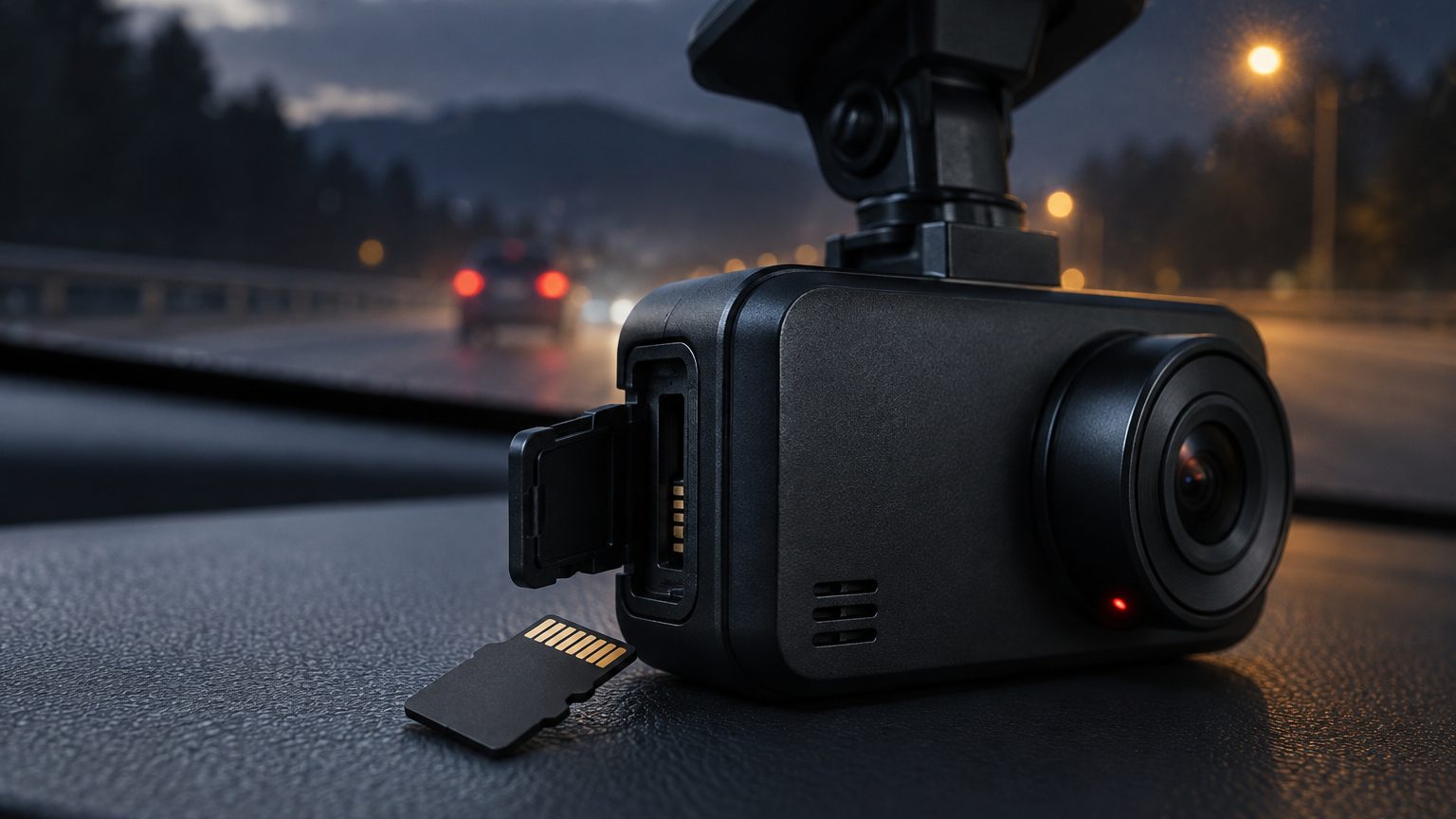
The most reliable way to download footage is to power the camera down, remove the microSD card and read it with a card reader on a computer. The fastest way for a single clip is the WiFi app, which pulls the file to a phone without opening anything. Some cameras also act as a USB drive when connected by cable. The right method depends on how much footage you need, how quickly you need it, and whether the camera has WiFi. This note explains each method and the problems that come with it, then suggests a routine for fleets and sellers who must support customers.
The three methods compared
| Method | Best for | Limits |
|---|---|---|
| Card reader on a computer | Large volumes, evidence copies, any camera | Requires removing the card; adapter needed for some laptops |
| WiFi and phone app | One or a few clips, quick sharing | Slower for large files; needs a supported phone and app |
| USB cable to the camera | Cameras with no removable access, bench work | Not all models support it; camera must be powered |
| Cloud upload (4G models) | Fleets that need footage remotely | Needs a data plan and a cloud platform |
Method one: card reader
This is the method every dash cam supports, because it relies only on the card. Turn the camera off, remove the card, insert it in a reader, and open the drive on a computer. Clips sit in folders that separate normal loop files from locked event clips, usually named for the type of recording. Copy, do not move, the files you need, so the original card still holds them until you check the copy. Playing files directly from the card is slow and can lock the card, so copy first. Use a reader that fits microSD directly or a microSD-to-SD adapter. When the footage is evidence, copy the entire folder, including the files before and after the event, and keep the card untouched. The evidence note explains why.
Method two: WiFi and the app
A WiFi dash cam creates its own network. The phone joins that network, the app connects, and the app lists the files for viewing and download. The advantage is convenience: no tools, no removal of the card, and clips land in the phone's gallery for sharing. The limits are speed, because the link is far slower than a card reader, and practicality, because it works best for a few short clips rather than hours of video. Some phones also drop the camera's network when they find no internet, which confuses first-time users. The WiFi and app note covers the user experience, and the WiFi dash cam lines describe the models. For sellers, a clear first-use guide in the manual prevents the most common support question.
Method three: cable
Some cameras expose their storage when connected to a computer by USB, so the card appears as a drive without removing it. This helps cameras mounted where the card slot is hard to reach, and it is useful on the bench for testing. Others use the USB port only for power. The manual states which, and the answer is a spec sheet item worth asking the supplier about before ordering, particularly for installer programs. Always eject the drive safely before unplugging, because an interrupted transfer can corrupt the file system.
Choosing between them
A simple decision guide keeps the choice quick. For a single clip needed within minutes, use the app. For an insurance copy, a full review or anything that must not be altered, use a card reader, because it is faster, does not depend on the camera's battery state and produces a clean copy of the original files. For a camera returned by a customer, use a card reader as well, so you can inspect the whole card rather than the files the app chose to show. Cable transfer is the fallback for the few models that support it. Teaching customers the same order of preference in a support article prevents the most common complaint, which is a half-downloaded clip that will not play because the connection dropped midway.
File formats and playback
Most dash cams write MP4 or MOV files, often with the H.264 or H.265 codec. H.265 files are smaller but some older software and some phone galleries play them poorly or not at all. If a clip will not play, try a different player before assuming the file is damaged. Cameras with GPS usually store the location track separately or inside the file, and special player software may be needed to show the map. Dual-channel cameras write front and rear files separately, with matching times in the file names. Keep the pairs together when copying. The codec note explains the playback implications for buyers.
Common problems
- The card is not recognized. Try another reader or port, check for a worn card and see the corrupted files note.
- The clip will not play. The player may not support H.265; try another player.
- The timestamp is wrong. The camera clock was never set or reset after a power loss; set it again and note the error in any written record.
- The app cannot connect. The phone switched back to mobile data; turn off auto-switching, or forget and rejoin the camera network.
- Files are missing. Loop recording overwrote them, or the card had errors. Download soon after an incident.
A routine for fleets and resellers
For fleets, set a standard: who downloads, how soon after an incident, where files are stored and for how long. Name files with vehicle, date and incident reference, keep an original copy untouched and work from a duplicate. For resellers, build a support page covering the three methods, and note which one each model supports. Fewer customers will write in if the page leads with the steps that apply to their camera. Combine this with a periodic format, as described in the format note, so the card is clean for the next loop. Remote needs are covered in the cloud note.
Where the desk fits in
Roadtrace coordinates the download path with partner factories in Shenzhen: we check the card reading, the app pairing and the file playback on samples, and confirm the manual wording in writing for each program. For app and manual changes, see firmware and app customization, and for a brief, use the quote form.