
The short answer
A dash cam update replaces the camera's internal software with a newer version. Manufacturers release updates to fix bugs such as freezing or card errors, to improve startup and shutdown handling, to adjust image settings, or to add small features. The usual methods are to copy a firmware file to the card and restart the camera, or to start the update from the phone app on WiFi models. Updates are low risk if the process is followed and power stays stable, but a failed update can leave a camera unusable, so sellers and fleets should control versions rather than leave them to chance. This note covers why updates matter and how to manage them.
Why firmware is updated
Dash cam firmware is a compact operating system plus the recording logic. It manages the sensor, the encoder, the card, the clock, the G-sensor, the buttons and any WiFi or GPS module. Bugs in any of these appear in the field. The table lists common reasons for an update and what a buyer should expect.
| Reason | Example symptom | What an update may do |
|---|---|---|
| Stability | Camera freezes or restarts | Fixes a lock-up in the recording loop |
| Card handling | Card error with several cards | Improves compatibility and file handling |
| Shutdown and power | Last clip damaged after power cut | Closes the file more reliably; see the corrupted files note |
| Image tuning | Glare, color or night exposure issues | Adjusts exposure and WDR settings |
| Parking mode | Wrong triggers or high drain | Refines motion detection and cutoff handling |
| Features and app | New language, new option | Adds menu items, languages or app functions |
Not every model needs updates, and not every update is an improvement. An update can introduce a new bug while fixing an old one, which is why version control matters.
How updates are applied
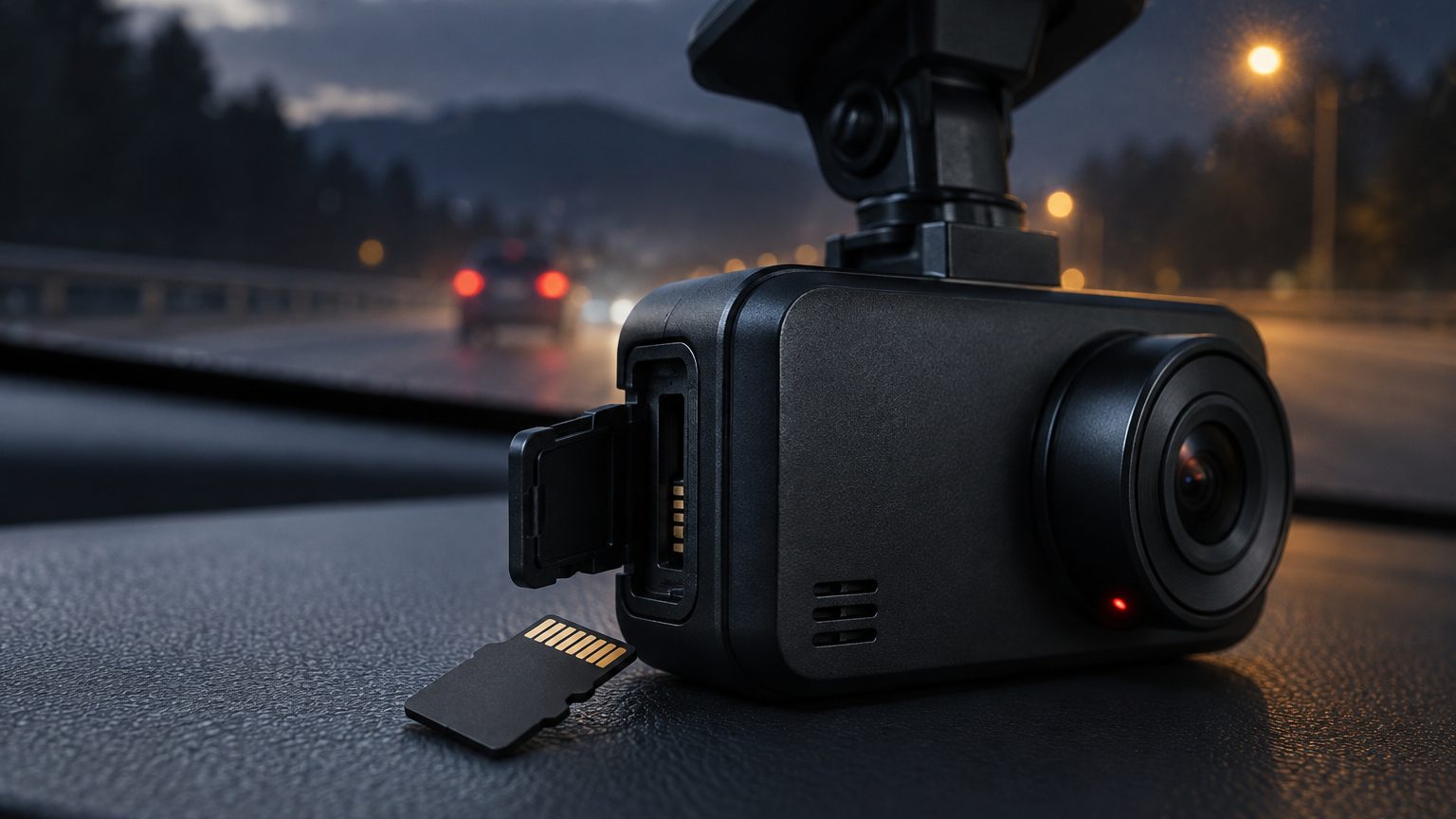
There are three common routes. The first is by card: the supplier provides a firmware file, the user copies it to the root of a formatted card, inserts the card and powers the camera, which reads the file, updates and restarts. The second is through the app: on WiFi models, the app checks for a new version and pushes it to the camera. The third is by cable or special tool, used mostly at the factory. The card method works for every model and needs no app. The app method is easier for customers but depends on the app and a stable connection. See the WiFi and app note for how the app fits in. Always follow the instructions that come with the file, because the exact filename and location matter to the camera.
A safe update routine
- Read the notes. Check what the new version changes and whether it suits your model and hardware revision.
- Back up. Download footage you want to keep, because a format step may be involved. See the download note.
- Use stable power. Do not update on a weak battery or in a car that may switch off. A bench supply or a charged power source is best.
- Use a suitable card. A clean, formatted card avoids read errors during the update.
- Do not interrupt. Leave the camera until it restarts.
- Verify. Check the version number in the menu or app, set the clock and record a test clip.
What can go wrong
Most failed updates trace to power loss during the process, a wrong file for the model or hardware revision, or a damaged card. A camera interrupted mid-update may fail to boot. Some models have a recovery mode that accepts the file again; others need to go back to the factory. Wrong-model files are a real risk when a supplier builds several variants on one platform, because the case and the label look the same while the internals differ. The prevention is simple: keep a table of model, hardware revision, firmware version and file name, and send customers only the file that matches. The rule fits all suppliers, whatever the platform, and it protects you from a mass failure caused by one wrong download link.
Version control for sellers and fleets
If you sell a model for a year, units will be in the field with different versions. Decide which version is the shipping standard and which is the minimum supported. Ask the factory to flash the standard version before packing, and record it on the lot. When a fix is released, test it on samples with your own cards and your own app build before offering it to customers. For fleets, update in stages: a few vehicles first, then the rest after a week without problems. Keep a record of the version in each vehicle so that an issue can be traced to a build. The firmware quality note discusses why stability matters more than a long feature list.
Firmware and branding
For private label programs, firmware also carries the brand: the boot logo, menu language, defaults and the app name. A customized build must be tested like any other, and every update to the base firmware means a new branded build and a new test. That is one reason firmware and app branding carry a higher minimum quantity than logo-only programs, as described on the firmware and app customization page. Ask the supplier how update files will be delivered, who hosts them, and how long they will be supported, because a branded camera with no update path is hard to support after the first year.
What to ask the supplier
Before a program, ask in writing: which firmware version ships, how updates are released, whether updates are by card or app, who tests them, how a failed update is recovered and how long updates are supported. Also ask whether the factory runs a burn-in test on the shipping version, since see the burn-in testing note for how aging tests catch firmware faults. Roadtrace coordinates these questions with partner factories in Shenzhen and records the answers for each program; terms are confirmed in writing. For timing, see MOQ and lead time, and send your brief through the quote form.